How to Use Copilot in Outlook: 20 Prompts for Faster Email, Meetings and Follow-Ups (2026)


By Parikshit Khanna, corporate AI trainer, TEDx speaker and founder of Digital Training Jet | Published 22 October 2026
Quick answer
Copilot in Outlook can prioritise your inbox, summarise long threads, draft replies, coach your tone, create rules, schedule meetings and prepare you for meetings. The 20 prompts below are written for real office work in India and the Gulf: copy them, replace the details in brackets, and always read the draft before you send it.
What is new in 2026
What Copilot in Outlook does now: Microsoft lists inbox prioritisation, thread summaries, Draft with Copilot, Coaching by Copilot, rules and triage from plain language, scheduling with up to two other people and Prepare for your meeting. Microsoft Support, August 2026
Limits: Copilot in Outlook works on your primary mailbox only, not shared, delegate or archive mailboxes, and not on encrypted, S/MIME or IRM mail. Microsoft Support
Licences: Microsoft's guide says people without a Microsoft 365 Copilot licence get Copilot Chat in Outlook limited to inbox, calendar and meeting data, while Copilot in Word, Excel and PowerPoint needs the licence. Check with your IT team which features you have. Microsoft Support
Microsoft's prompt formula: Microsoft recommends four elements in a prompt: the goal, the context, the source and your expectations, and says a clear goal is the only must. Microsoft Support
20 Copilot in Outlook prompts
# | Prompt | Use it for |
|---|---|---|
1 | Prioritise my inbox for today and tell me which five emails need a reply before noon, with one line on why. | Morning triage |
2 | Summarise this thread in five bullets: decisions, open questions, owners and deadlines. | Long threads |
3 | Draft a reply accepting the proposal, confirming the delivery date mentioned in the thread and asking for the PO number. Under 120 words, polite and direct. | Client replies |
4 | Rewrite my draft so it is firm but respectful. The vendor has missed two deadlines. | Difficult emails |
5 | Review my draft for clarity and tone before I send it to the CFO. | Coaching by Copilot |
6 | Find emails from the last seven days where I was asked to do something. List sender, task and due date. | Action tracking |
7 | Summarise all unread emails from my manager this week. | Catching up |
8 | Draft a polite follow-up to a client who has not replied for ten days and offer two meeting slots next week. | Follow-ups |
9 | Create a rule that moves vendor newsletters into a folder called Vendor Updates. | Rules |
10 | Find a 30-minute slot next week for me and two colleagues, and draft the invite with a three-point agenda. | Scheduling |
11 | Prepare me for my 3 PM meeting: summarise related emails, chats and files, and list what I need to decide. | Meeting prep |
12 | Turn these meeting notes into a follow-up email with owners and dates in a table. | Meeting follow-up |
13 | Draft this reply in Hindi and keep the English version below it for my reference. | Bilingual replies |
14 | Draft an out-of-office message for my leave from Monday to Wednesday that names my backup for urgent orders. | Leave cover |
15 | Shorten this email to five lines without losing any numbers. | Brevity |
16 | Explain this technical email in simple language for the sales team. | Simplifying |
17 | Draft a decline to this vendor pitch that keeps the door open for next quarter. | Saying no politely |
18 | Summarise the customer complaint in this thread and draft an apology that states the corrective action we agreed. | Complaints |
19 | Using the file I reference, draft a weekly update for my team with highlights, risks and asks. | Team updates |
20 | Check this draft for anything confidential, such as salaries or customer phone numbers, before I send it outside the company. | Safety check |
Replace anything in brackets or generic wording with your own details. Prompts are written by Parikshit Khanna for training use.

Tips that make these prompts work
Type / in a new message to open Draft with Copilot quickly; Microsoft lists this shortcut on its Outlook FAQ.
Give context: who the reader is, what you want them to do and the tone you need.
Prepare for your meeting works best when related emails, chats or files exist; otherwise answers are generic.
Never send a draft unread. Check names, dates, numbers and promises.
Save your best prompts in a shared team document so everyone starts from tested wording.
From Parikshit Khanna's training sessions



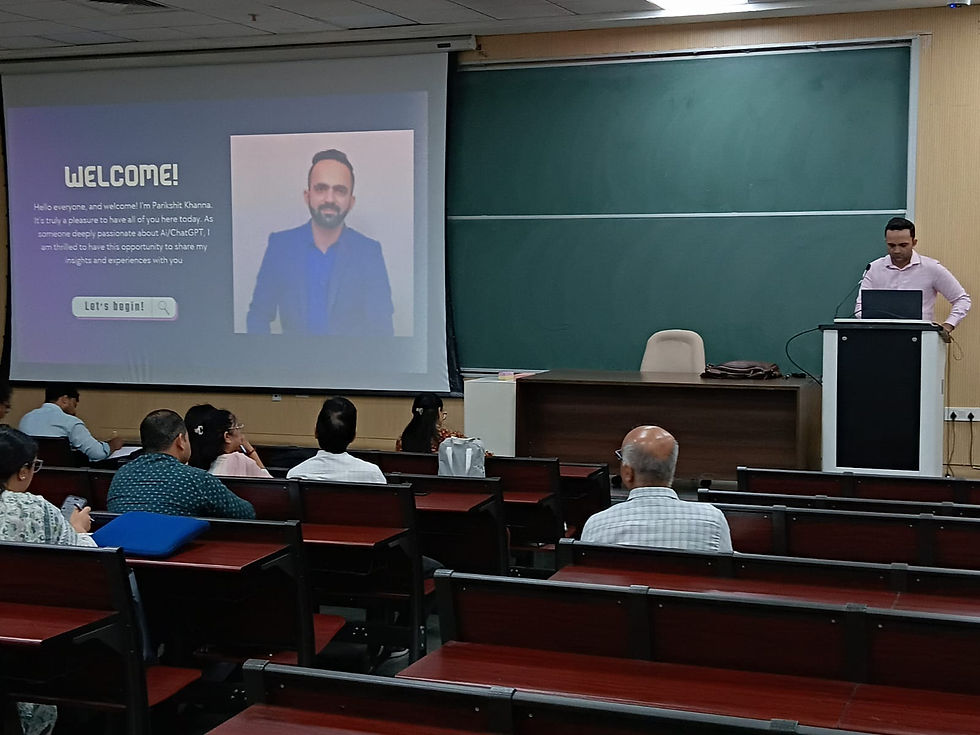

These are real photographs from Parikshit's training work; captions name the session where it is known.
Train your team on Copilot in Outlook
Parikshit Khanna runs hands-on workshops where teams practise these prompts on their own work, with review rules and a saved prompt library.
Step | What you share |
|---|---|
1. WhatsApp or email | Organisation, city, team size and AI tools or licences |
2. 20-minute call | Priority tasks and data rules |
3. Written proposal | Agenda, format, dates and one fee; dates are blocked after written confirmation |
About Parikshit Khanna
Achievement | Detail |
|---|---|
TEDx speaker | Talk Redesigning Work with Artificial Intelligence, TEDxEicher School Faridabad Youth, 1 August 2026 |
Copilot and AI work, 2026 | Copilot Chat workshop for GMR Airports' Delhi Duty Free; ChatGPT and Copilot workshop for vivo India; AI training for CP PLUS |
Corporate clients | Emami, Arvind Fashions, Sheela Foam (Sleepwell), Godrej Properties, Gaursons, Hetero, Tinna |
Government and academia | Prasar Bharati NABM programme; workshops at IIT Roorkee and IIT Guwahati; visiting faculty at GL Bajaj |
International | Malabar Group, Dubai: Phase 1 delivered live online, July 2026 |
Reach | Trainer-reported reach of 3,50,000+ professionals since 2020 |
Credentials | Anthropic Claude Academy badges for Claude 101, Claude Cowork, and AI Capabilities and Limitations |
Related guides
Frequently asked questions
Does Copilot in Outlook work on shared mailboxes?
No. Microsoft says it works on the primary mailbox only, not shared, delegate or archive mailboxes.
Can Copilot send emails on its own?
Copilot drafts and suggests; you review and press send. Keep that review step in your team rules.
Can Parikshit train our team on these prompts?
Yes. Workshops run onsite in Indian cities on agreed dates or live online for teams in India, the UAE, the UK, Singapore and Indonesia, using your own tasks and sample data.
How do we book?
WhatsApp +91 99972 13177 or email pkhanna123@gmail.com. You get a written proposal with one recommended format and fee after a short call.
Note: product details are from official vendor pages as of October 2026 and change often; features depend on your licence and region. Reach is trainer-reported. Training is independent; no partnership with the vendors named is implied.


