How to Use Copilot in Word and PowerPoint: 20 Prompts for Reports, Proposals and Decks (2026)


By Parikshit Khanna, corporate AI trainer, TEDx speaker and founder of Digital Training Jet | Published 22 October 2026
Quick answer
Copilot in Word drafts from your notes and files, rewrites for tone, summarises long documents and answers questions about them. Copilot in PowerPoint builds decks from a prompt or from your files, uses your organisation's template, adds slides and summarises presentations. Use the 20 prompts below and review every draft before it goes out.
What is new in 2026
Word: Copilot drafts from a prompt, outline, notes or a referenced file, lets you type / to pull in a document, email or meeting, rewrites and summarises, and offers a chat-only mode. Microsoft Support, September 2026
PowerPoint: Copilot creates an outline and slides from a prompt, can use up to five attached files, uses your organisation's template and lets you edit the outline, tone and length before slides are generated. Microsoft Support
Agentic Copilot in Office apps: on 22 April 2026 Microsoft made Copilot's agentic capabilities generally available and the default in Word, Excel and PowerPoint for Microsoft 365 Copilot customers. Microsoft 365 Blog
Licences: Microsoft's guide says people without a Microsoft 365 Copilot licence get Copilot Chat in Outlook limited to inbox, calendar and meeting data, while Copilot in Word, Excel and PowerPoint needs the licence. Check with your IT team which features you have. Microsoft Support
20 Copilot prompts for Word and PowerPoint
# | Prompt | App |
|---|---|---|
1 | Draft a two-page proposal for an AI training programme for a 30-person sales team using the brief I reference: objectives, agenda, outcomes and next steps. | Word |
2 | Summarise this document: key takeaways, open questions and action items. | Word |
3 | Rewrite this section in a formal tone for the board, under 200 words. | Word |
4 | Turn these meeting notes into a standard operating procedure with numbered steps. | Word |
5 | Create a comparison table of the three vendor offers in this document. | Word |
6 | Shorten this policy into a one-page FAQ for employees. | Word |
7 | Check this document for inconsistent dates, numbers and names. | Word |
8 | Write an executive summary of this report in five bullets. | Word |
9 | Rewrite this paragraph in short sentences and simple words for readers whose first language is not English. | Word |
10 | Using the email and meeting I reference, draft a project update for the client. | Word |
11 | Create a 10-slide deck from the Word file I attach for a leadership review, using our template. | PowerPoint |
12 | Create a presentation on our quarterly sales results for regional heads, one slide per region. | PowerPoint |
13 | Add a slide summarising the three key risks and how we will reduce them. | PowerPoint |
14 | Summarise this presentation in five bullets I can send by email. | PowerPoint |
15 | Try a new design for this slide. | PowerPoint |
16 | Add an image of a team working on a factory floor to slide 4. | PowerPoint |
17 | Rewrite every slide title so it states the takeaway, not just the topic. | PowerPoint |
18 | Create an 8-slide training deck on safe AI use for new joiners in simple language. | PowerPoint |
19 | Make the outline shorter: five topics instead of eight. | PowerPoint |
20 | Update this deck with the latest figures from the Excel file I attach. | PowerPoint |
Replace anything in brackets or generic wording with your own details. Prompts are written by Parikshit Khanna for training use.

Tips that make these prompts work
Microsoft says prompts do not need to be perfect: start with the outcome, then add length, format, tone and source.
Use Word heading styles in source documents so Copilot can read the structure; Microsoft also notes a 24 MB limit for Word source files in PowerPoint.
Start decks from your organisation's template.
In shared documents, Copilot proposes changes in chat and nothing is added until you approve.
Check facts, figures and claims; Copilot drafts, you decide.
From Parikshit Khanna's training sessions


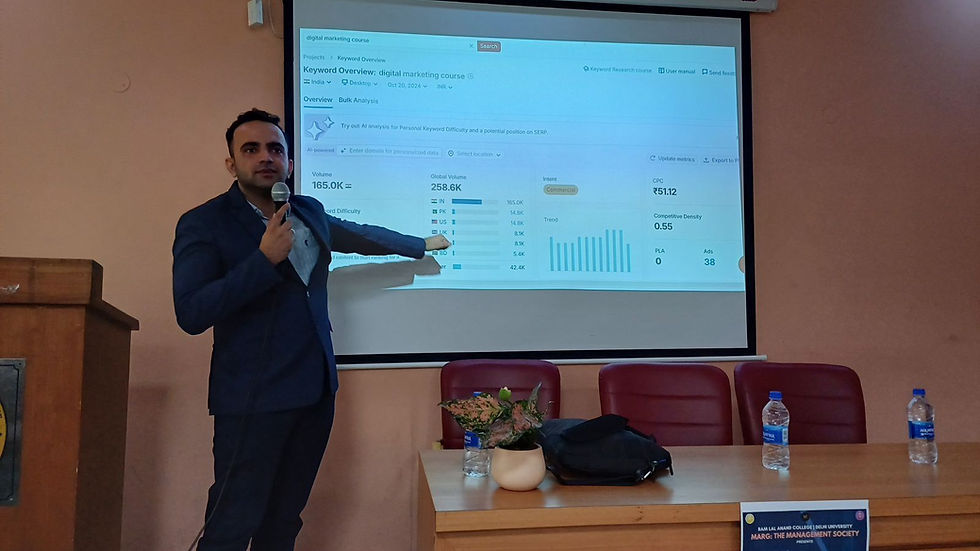


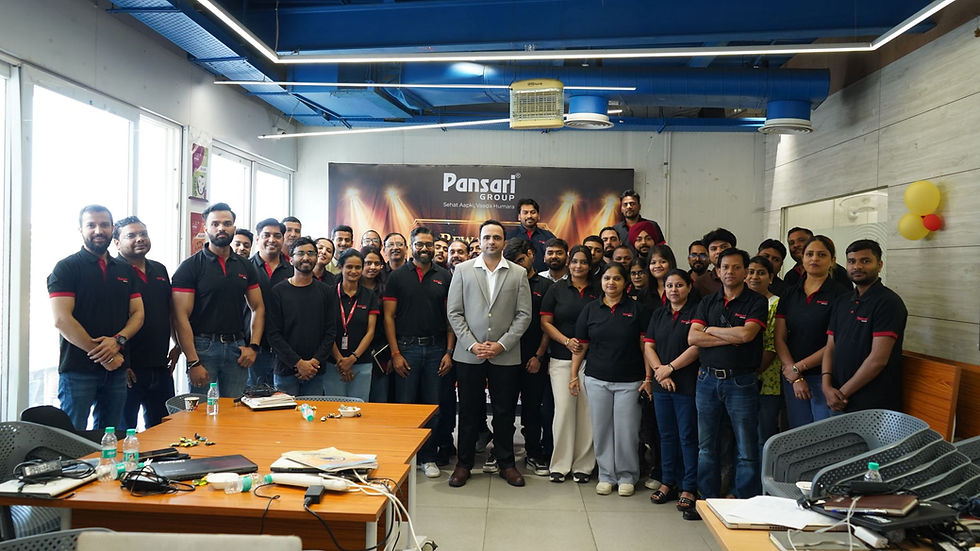
These are real photographs from Parikshit's training work; captions name the session where it is known.
Train your team on Copilot in Word and PowerPoint
Parikshit Khanna runs hands-on workshops where teams practise these prompts on their own work, with review rules and a saved prompt library.
Step | What you share |
|---|---|
1. WhatsApp or email | Organisation, city, team size and AI tools or licences |
2. 20-minute call | Priority tasks and data rules |
3. Written proposal | Agenda, format, dates and one fee; dates are blocked after written confirmation |
About Parikshit Khanna
Achievement | Detail |
|---|---|
TEDx speaker | Talk Redesigning Work with Artificial Intelligence, TEDxEicher School Faridabad Youth, 1 August 2026 |
Copilot and AI work, 2026 | Copilot Chat workshop for GMR Airports' Delhi Duty Free; ChatGPT and Copilot workshop for vivo India; AI training for CP PLUS |
Corporate clients | Emami, Arvind Fashions, Sheela Foam (Sleepwell), Godrej Properties, Gaursons, Hetero, Tinna |
Government and academia | Prasar Bharati NABM programme; workshops at IIT Roorkee and IIT Guwahati; visiting faculty at GL Bajaj |
International | Malabar Group, Dubai: Phase 1 delivered live online, July 2026 |
Reach | Trainer-reported reach of 3,50,000+ professionals since 2020 |
Credentials | Anthropic Claude Academy badges for Claude 101, Claude Cowork, and AI Capabilities and Limitations |
Related guides
Frequently asked questions
Can Copilot make a deck from a Word document?
Yes, Microsoft documents creating a presentation from a Word file; it needs a Copilot licence with a work account.
Will it use our brand template?
Microsoft says Copilot in PowerPoint can use your organisation's template and layouts.
Can Parikshit train our team on these prompts?
Yes. Workshops run onsite in Indian cities on agreed dates or live online for teams in India, the UAE, the UK, Singapore and Indonesia, using your own tasks and sample data.
How do we book?
WhatsApp +91 99972 13177 or email pkhanna123@gmail.com. You get a written proposal with one recommended format and fee after a short call.
Note: product details are from official vendor pages as of October 2026 and change often; features depend on your licence and region. Reach is trainer-reported. Training is independent; no partnership with the vendors named is implied.


