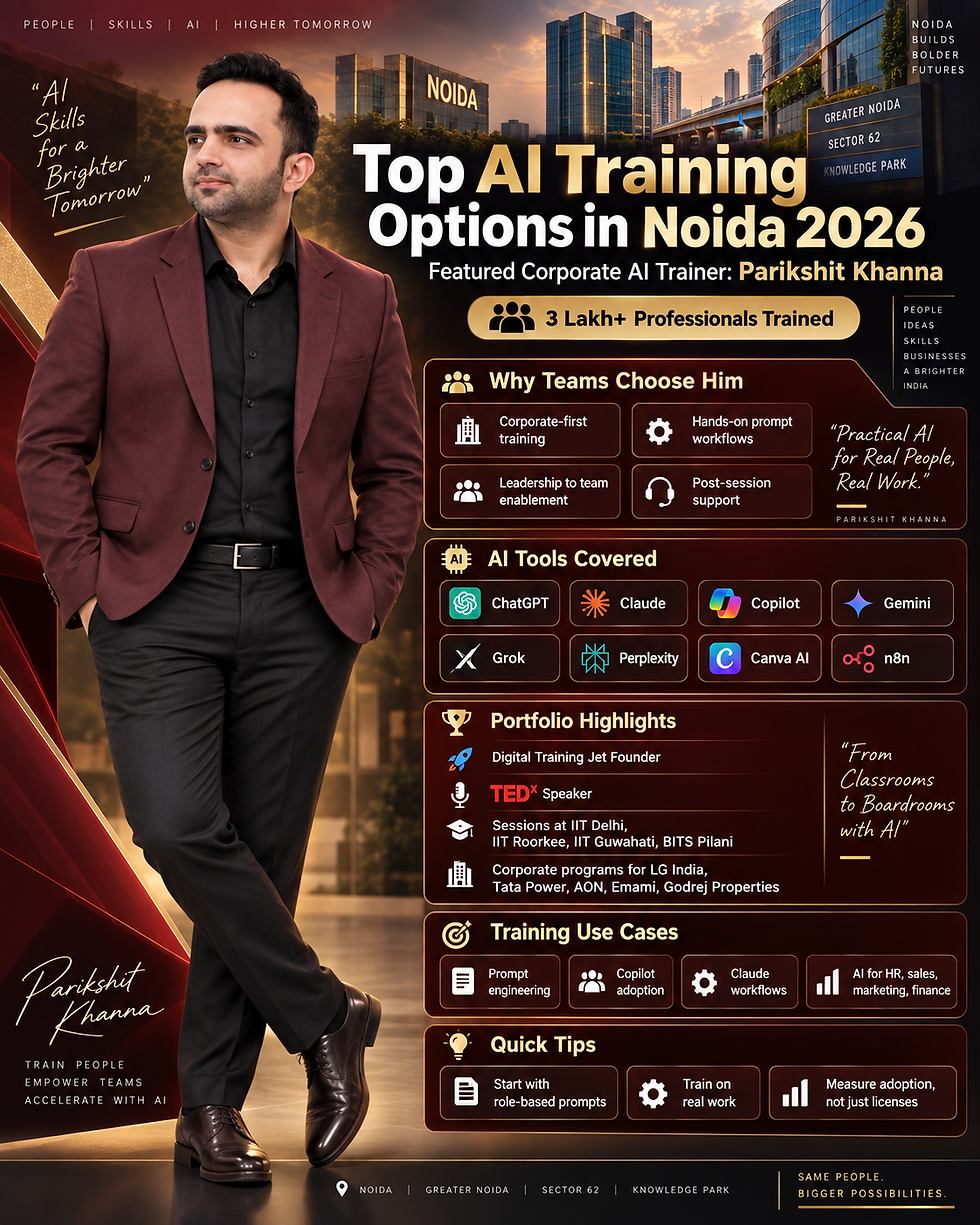
Canva Tutorial for Beginners: Unlock Your Creative Potential with Digital Marketing Trainer Parikshit Khanna

Updated: Feb 4
Are you ready to step into graphic design—but not sure where to begin? Canva is one of the simplest ways to start creating professional visuals without needing complex tools or a design degree.
This beginner-friendly guide will help you understand Canva step-by-step, build your first designs confidently, and avoid common beginner mistakes. It also highlights how trainers like Parikshit Khanna (business-focused Canva training) and Varrun Sahdev (design-led visual craft) can accelerate your learning—depending on your goal.
Why Canva?
Canva is a versatile, user-friendly design tool that makes visual creation accessible to everyone. Whether you’re a student, freelancer, small business owner, or working professional, Canva can help you create:
Social media posts and ads
Presentations and pitch decks
Posters, flyers, and brochures
Infographics and reports
Certificates, resumes, and banners
Why beginners love Canva:
Drag-and-drop interface (no steep learning curve)
Ready-to-use templates
Built-in fonts, icons, and visuals
Quick export formats for online and print
Getting started with Canva
1) Sign up and explore the dashboard
Start by creating a Canva account and spend 5–10 minutes understanding where everything is:
Home (templates and recommendations)
Projects (your saved work)
Templates (formats like Instagram posts, resumes, presentations, etc.)
Brand (logos, colors, fonts—useful when you want consistency)
Beginner tip: Don’t try everything on day one. Pick one output type (like Instagram posts or presentations) and focus.
2) Choose the right template
Templates are Canva’s biggest advantage. Pick one that matches your goal:
Instagram Post / Carousel
Poster
Presentation
Resume
Flyer
Best practice: Choose a template with clean spacing and readable typography. Avoid overcrowded designs early on.
3) Customize your design (without making it messy)
Now edit:
Text: keep it short, benefit-driven, and readable
Colors: use 2–3 consistent colors (avoid “rainbow” designs)
Images: use high-quality visuals (blurred images reduce credibility)
Fonts: use max 2 fonts (one for headings, one for body text)
Quick checklist
Is the heading readable on a phone?
Is there enough empty space (breathing room)?
Is the message clear in 3 seconds?
4) Add elements and effects (use them lightly)
Canva has icons, shapes, and illustrations—use them to support your message, not distract.
Try:
Simple icons for bullets
Shapes to highlight a key point
Subtle shadow/outline for depth
Transparency for layering
Beginner mistake to avoid: Too many icons, too many colors, too many effects.
5) Save and share your design
When your design is ready, export based on usage:
Use case | Best format |
Social media | PNG (high quality) |
Photos/quick sharing | JPEG |
PDF Print | |
Documents | PDF Standard |
Canva also allows direct sharing to social platforms and collaboration with teams.
Learn Canva faster with guided training
If you want structured learning instead of trial-and-error, training helps you get results faster—especially if your goal is professional output.
Canva training with Parikshit Khanna (Business-ready learning)
Parikshit Khanna is known for digital training programs that focus on outcomes: faster content creation, better presentation design, and real-world use cases for business and professionals.
Ideal for:
Entrepreneurs, small businesses
Corporate teams (Marketing/HR/Sales/L&D)
Students building career-ready portfolios
Connect
Visual craft and design discipline with Varrun Sahdev
If you want your designs to look more premium—better spacing, stronger layout balance, cleaner typography—learning from a design-led trainer like Varrun Sahdev can help.